Add ‘Copy To’ & ‘Move To’ to Windows Right-Click Menu
*Applies to Windows Vista, Windows 7, Windows 8/8.1, and Windows 10
 Do you remember the old "Copy to" and "Move to" options which were once part of the Windows right-click context menu? For some reason, beginning with Vista, Microsoft decided to do away with these two options. I remember, years ago, using a freeware tweaking tool to add the "Copy to" and Move to" options back in.
Anyway, it's something which I've always found useful and, while there are still freeware tweaking tools around that will add these options for you, it's very easy to do manually via a simple registry hack.
Not that it's overly complicated to copy and move files around using drag and drop. Simply open the two folders/locations, right-click the file and hold down the right-click button, drag the file from its original folder to the new folder/location and release the right-click button. This will then present options asking if you want to "Move" or "Copy" the file:
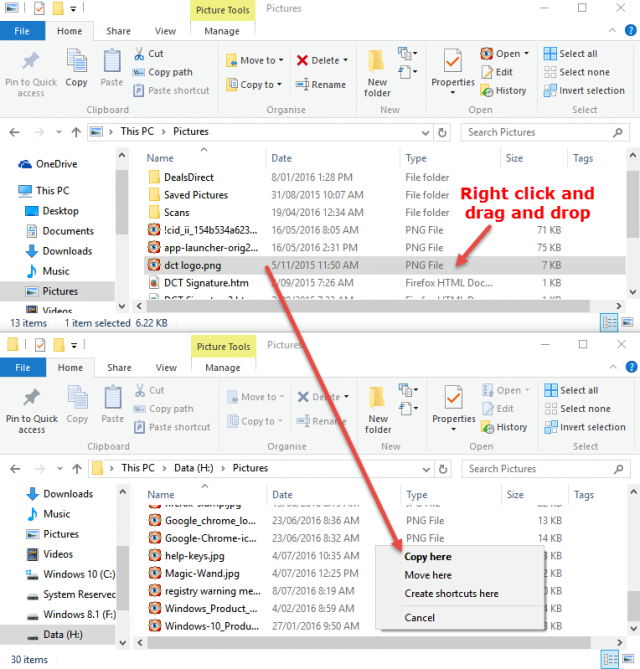
Select either Copy here or Move here and the job's done.
Adding the "Copy to" and "Move to" options into the right-click menu provides an alternative method to achieve the same result. Whether or not this method is simpler than drag and drop is probably a matter of opinion but I've found it to be more convenient and, I guess, it's something which I've simply become used to. So, if you would like to bring back these options in any version of Windows since Vista, including Windows 10, here's how.
These are pretty straight forward registry changes but I've provided a download which will get the job done for you without needing to manually edit the registry keys. Simply click the download button below to download the less than 1KB zip folder:

Click to Download the Copy To/Move To ZIP file
Once downloaded, you should see a file called copyto_moveto.zip in your default Downloads folder. Right click the file and select Extract All. Once the extraction is complete, you should now see 2 files in the extracted folder: copyto.reg and moveto.reg. Right click on one of the files and select Merge. You'll receive a warning about changing registry values – this is a standard message, just click Yes to proceed:
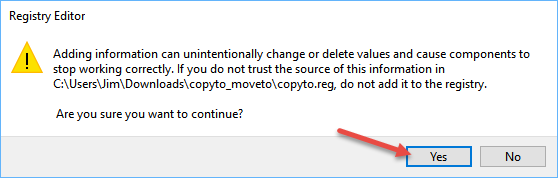
Now go through the same process for the second file. Once you've finished merging both files you'll now see the "Copy to" and "Move to" options included in the right-click menu.
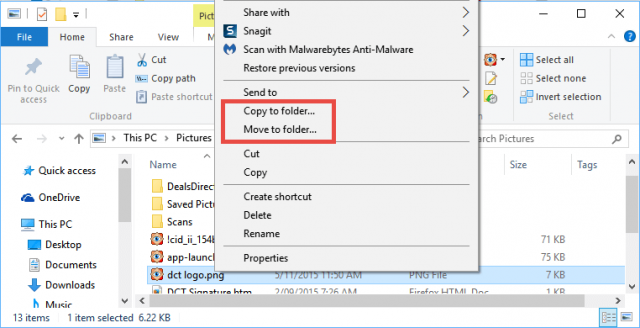
To copy or move a file to another folder/location, right click the file and select the appropriate option. This will open a browse window where you simply select your destination folder and then click either the Move or Copy button (depending on your chosen action):
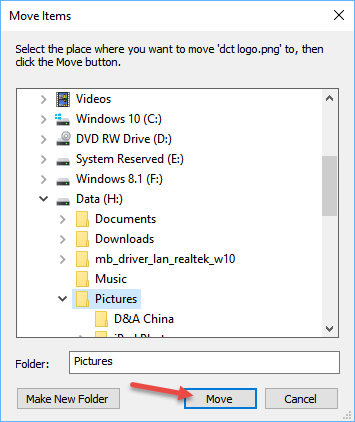
*Copy or move multiple files by holding down the CTRL key while selecting each file, when all files you want to copy or move to another location are highlighted, right-click one of the selected files and choose "Copy to" or "Move to" from the right-click menu.
—

Source: davescomputertips.com
Images credited to davescomputertips.com and


Comments
Post a Comment