How to Add Cross-References to Footnotes in Word 2013
How to Add Cross-References to Footnotes in Word 2013. Video How to Add Cross-References to Footnotes in Word 2013

Source: davescomputertips.com
Images credited to davescomputertips.com and 24.media.tumblr.com
In Academia there are often very lengthy documents that have myriad footnotes and they sometimes necessitate cross-referencing. This often occurs in technological business manuals as well. The issue here is that when you use automatic footnote numbering the cross-references can be a burden if you have to update them manually.
Fortunately, Word allows you to automatically cross-reference footnotes so that your cross-references once set, always stay in place correctly.
Follow the steps below to learn how:
- Select the footnote reference mark that you would like to cross-reference in your document.
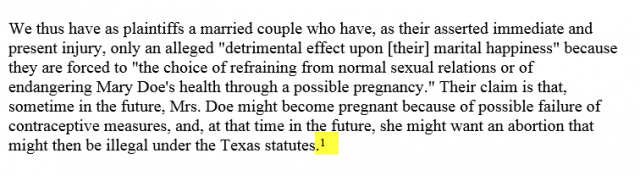
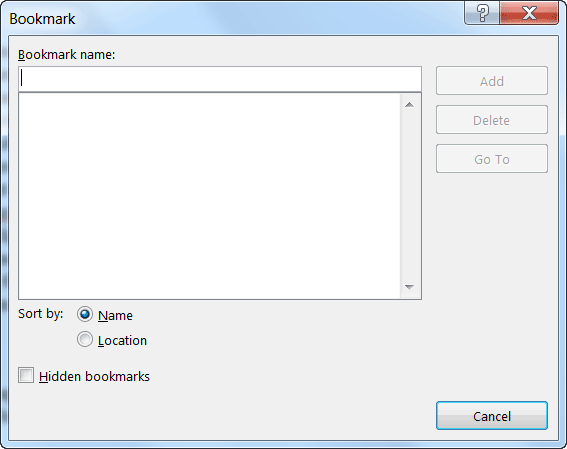
- Assign this footnote reference mark a bookmark name by clicking on the Insert tab of your Ribbon and in the Links group, click on Bookmark.
- Place your cursor in the footnotes where you want to place the cross-reference.
- Click CTRL + F9 to insert field brackets. Be certain your cursor stays between the brackets.
- Key in ftnref followed by the name of the bookmark used above.
- Click F9 to update the field information.
Word will replace the field with the footnote number to which your bookmark was assigned.

—
Source: davescomputertips.com
Images credited to davescomputertips.com and 24.media.tumblr.com


Comments
Post a Comment