How to use Building Blocks to Insert a Date in Word
How to use Building Blocks to Insert a Date in Word. 
Video How to use Building Blocks to Insert a Date in Word

Source: davescomputertips.com
Images credited to davescomputertips.com and support.vicrea.nl
Here's a lesser known method to insert dates into your Word documents.
Follow the steps below to learn how:
- Place your cursor on a blank line in your document.
- Display the Insert tab on your Ribbon.
- In the Text group, click Date & Time to display the following dialog box.

- Select the display format that is closest to what you would like.
- Be certain Update Automatically is selected at the bottom of the dialog box.
- Click on OK. The date using the format you selected above, will appear in your document now.
- Select the date field and click Shift + F9 to display the actual DATE field coding.
- Change the format within the quote marks to reflect your final format.
- Click Shift + F9 to display the DATE field results.
- Select the date field once again.
- Click Alt + F3 to display the Create New Building Block dialog box.
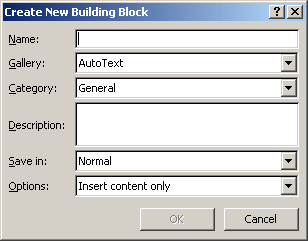
- Key in the word Date in the Name field.
- Click on OK.
Your DATE field, properly formatted, is now saved in a Building Block named DATE.
To use your newly created Building Block , type the word Date and then click your F3 key. The word Date will be replaced with your DATE field, just as you saved it in the Building Block you created above.
About the Author
Carol Bratt
Source: davescomputertips.com
Images credited to davescomputertips.com and support.vicrea.nl


Comments
Post a Comment